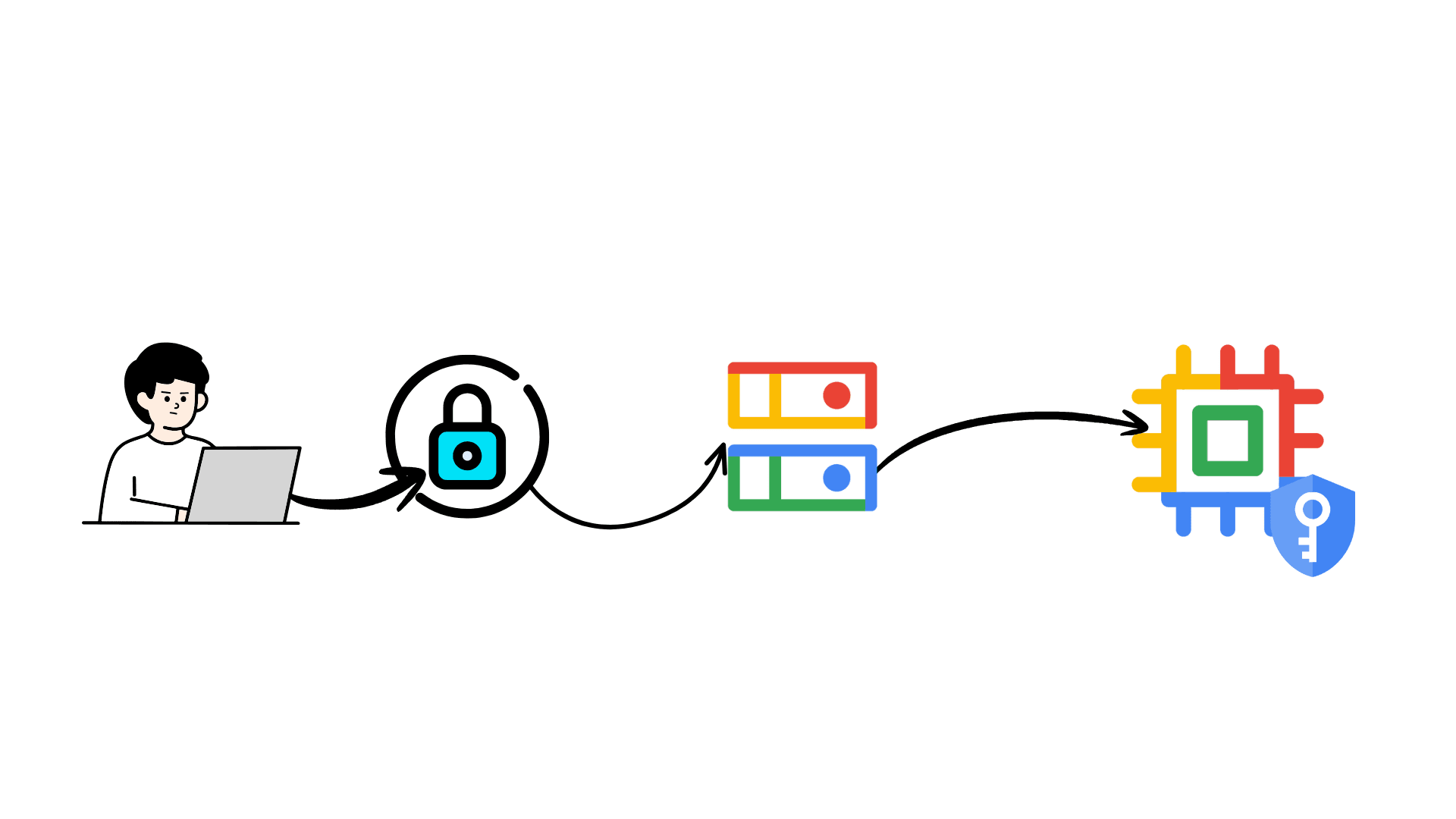

How to Set Up Personal and Office GCP Accounts on Your Local System

When you work with both personal and office Google Cloud accounts, it’s easy to mix up credentials on your local machine. In this guide, you’ll learn how to:
Prerequisites
Before you follow this guide, make sure you have:
Google Cloud SDK (
gcloud) installed
Install the official Google Cloud SDK for your operating system:Two separate Google accounts
One personal Google account (e.g., your Gmail)
One office/work Google account managed by your organization
Existing
gcloudconfigurations (optional but recommended)
It’s helpful to have namedgcloudconfigurations for each account, for example:personaloffice(or any name you prefer for your office account)
You can check existing configurations with:
gcloud config configurations listBasic familiarity with your shell
You should be comfortable with:Editing your shell config file (
~/.bashrcor~/.zshrc)Running commands in your terminal
With these prerequisites in place, you’re ready to set up separate ADC profiles and account-switching aliases.
Create separate Application Default Credentials (ADC) profiles for personal and office accounts
Switch between them quickly using simple shell aliases
Create an ADC profile for your personal account
First, log in with your personal Google account using gcloud:
gcloud auth application-default login
This command will print a URL. Open it in your browser and log in using your personal Gmail account. Once you finish authentication, gcloud will generate an ADC file at:
~/.config/gcloud/application_default_credentials.json
Create adc_personal.json
Now copy the newly generated ADC file to a dedicated file for your personal account:
cp ~/.config/gcloud/application_default_credentials.json
~/.config/gcloud/adc_personal.json
We create a separate file because a single application_default_credentials.json cannot store multiple accounts. Each account needs its own ADC file.
Create an ADC profile for your office account
Repeat the process, this time using your office Google account.
First, log in with your office email:
gcloud auth application-default login
Again, open the URL in your browser and authenticate with your office account. After login, the same application_default_credentials.json file will be updated with your office credentials.
Create adc_office.json
Now copy that file to a dedicated ADC file for your office account:
cp ~/.config/gcloud/application_default_credentials.json
~/.config/gcloud/adc_office.json
At this point, you should have:~/.config/gcloud/adc_personal.json → personal credentials ~/.config/gcloud/adc_office.json → office credentials
Create GCP account switcher aliases
To quickly switch between accounts, you can define shell aliases that:
Activate the correct
gcloudconfigurationSet the default project
Point
GOOGLE_APPLICATION_CREDENTIALSto the right ADC file
First Check which shell you’re using Run:
echo $0
If the output contains bash, edit:
vi ~/.bashrc
If it contains zsh, edit:
vi ~/.zshrc
Add the aliases
Append the following lines at the end of your shell config file (.bashrc or .zshrc). Make sure to replace <project_id> with your actual GCP project IDs.
###-------- GCP ACCOUNT SWITCHER -------------
###--- PERSONAL SWITCH ---

alias gcp-personal=' gcloud config configurations activate personal;
gcloud config set project <personal_project_id>;
export GOOGLE_CLOUD_PROJECT="<personal_project_id>";
export GOOGLE_APPLICATION_CREDENTIALS="$HOME/.config/gcloud/adc_personal.json";
echo "Switched to PERSONAL (Gmail)"'

###--- OFFICE SWITCH ---

alias gcp-office=' gcloud config configurations activate office;
gcloud config set project <office_project_id>;
export GOOGLE_CLOUD_PROJECT="<office_project_id>";
export GOOGLE_APPLICATION_CREDENTIALS="$HOME/.config/gcloud/adc_office.json";
echo "Switched to Office (Office)"'
After editing the file, reload your shell configuration:
# For bash
source ~/.bashrc

# For zsh
source ~/.zshrc
Switching between accounts
Now you can switch accounts with a single command:
##Switch to personal GCP account
gcp-personal

##Switch to office GCP account
gcp-office
Each alias will:
Activate the right
gcloudconfigurationSet the appropriate default project
Point
GOOGLE_APPLICATION_CREDENTIALSto the correct ADC file
Conclusion
This setup helps you avoid accidental deployments to the wrong project and makes working with multiple GCP accounts much smoother.